
Artwork Proof Approval Form: Free PDF and Editable Template
· ApproveTrail
An artwork proof approval form records who approved which file, for what purpose, and when. Use it when you need an explicit decision before a print job moves into production.
Download the printable approval form (PDF) · Download the editable form (RTF, opens in Word)
The template is free to download without an account. It includes a changes-requested option, so the same form can record a decision to send the proof back. For checks such as bleed, copy and export settings, use the separate artwork approval checklist.
What belongs on an artwork approval form?
A useful form identifies the job and the actual proof, rather than referring to “the latest artwork”. Record:
- The client, project and job reference.
- The exact filename and version, with a proof link or attachment reference.
- The production specification the proof was prepared against.
- What the reviewer is approving: for example, copy and layout, with colour handled separately.
- An explicit approval or a request for changes.
- The named approver, their role, and the date, time and time zone.
The reference matters as much as the signature. A signed form that says only “brochure approved” leaves the team guessing if two brochure files exist. Save a copy of the proof alongside the decision so the link is not your only reference.
Completed example: approving a cafe menu
This is a fictional job to show how the fields work.
| Field | Example entry |
|---|---|
| Client / project | Sample Cafe - autumn menu |
| Job reference | MENU-104 |
| Exact filename / version | sample-cafe-menu-v03.pdf |
| Production specification | Printer quote MENU-104, specification revision 1 |
| Approval scope | Menu wording, prices, page order and layout; colour to follow the printer’s separately agreed proof |
| Decision | Approved for the stated scope, no further changes requested |
| Approver | Alex, cafe manager and nominated decision-maker |
| Recorded confirmation | Reply to the proof request naming sample-cafe-menu-v03.pdf |
| Date / time / zone | 7 September 2026, 10:30 BST |
This record describes a specific decision. It does not claim that a browser preview proves the final stock, finish or colour. Use the digital versus printed proof guide to agree those limits with the printer.
How to use the form
1. Fill in the reference fields before sending
The sender should enter the job, filename, version and specification. Leave the decision and approver fields for the person authorised to sign off. Sending a partly completed form makes the requested action clearer and reduces the chance of a reviewer naming the wrong file.
2. Give the reviewer the proof and the scope
Send the form with the exact proof or an accessible review link. Explain what needs checking and when the decision is needed. If a colour proof or physical sample is still outstanding, say so explicitly instead of treating every aspect of the job as approved.
3. Ask for one clear decision
“Looks good, just change the price” is a request for changes. Record it that way, update the artwork and ask for a decision on the revised file. Avoid combining approval and unresolved edits in one ambiguous status.
4. Save the decision with the file
Keep the returned form or recorded confirmation, the proof and the relevant specification together. Tell the person releasing the job which version was approved. Where several people review, agree whose decision authorises the next step; a colleague’s comment is not automatically the client’s final sign-off.
What if the artwork changes afterwards?
Keep the approved file unchanged. Create a new version, describe the changes and obtain a new decision before treating that version as approved. If production has already started, first confirm what the supplier can still change. Follow the post-approval change workflow.
Is this a print approval form or a legal agreement?
It is a practical record of a review decision. Your printer’s production terms, the agreed approval scope and any applicable contractual requirements remain separate. Do not add a blanket liability statement copied from another company’s form and assume it fits your job.
Moving from a form to an approval link
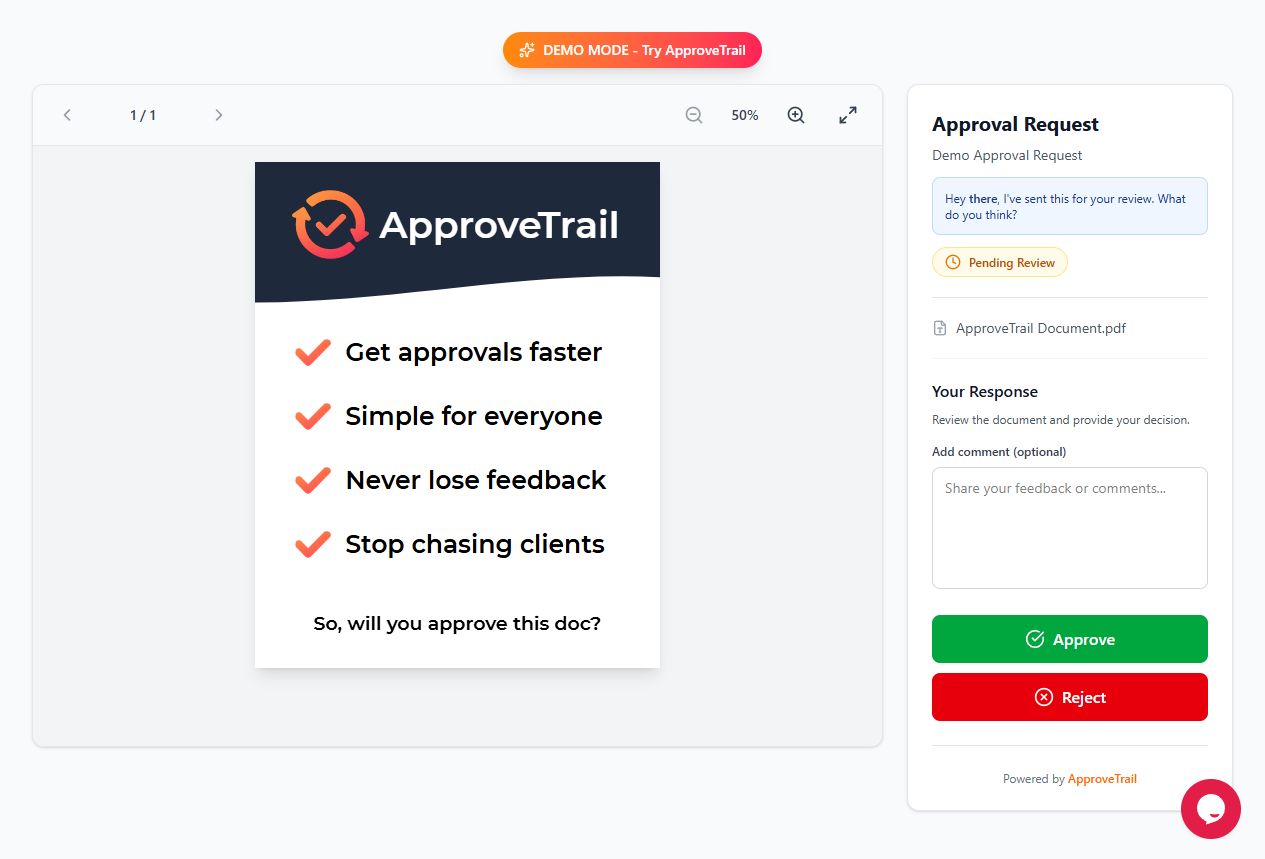
A form works well when you need a document to keep with a job. If you regularly collect decisions from several reviewers, ApproveTrail’s artwork approval workflow lets you send reviewer links and see approval or rejection with comments. Reviewers do not need an account. You can try the review demo before sending a real job.
Keep reading
Get sign-off without the chase
ApproveTrail is simple artwork approval software — free to start, no credit card.